

Few digital roadblocks create more immediate operational anxiety for a local business than discovering your Google Business Profile is held hostage by a former worker. You sit down to update holiday operating hours, upload photos of a showroom remodel, or respond to an urgent customer review, only to be met with an administrative wall: an unfamiliar or long-forgotten email address controls the primary ownership of your listing.
This dilemma is exceedingly common. During early growth phases, companies routinely delegate profile setup to an office manager, marketing coordinator, or outside contractor. That individual creates or claims the listing using their personal Google account or an unmonitored corporate inbox. When their employment ends, their administrative credentials leave with them.
Because a Google Business Profile directly drives local map rankings, customer phone calls, and direct navigation requests, remaining locked out is an unacceptable business vulnerability. Restoring administrative control requires a structured process that leverages Google’s automated verification pathways, official appeal mechanisms, and smart governance protocols.
Decoding the Account Clues and Attempting Direct Resolution
The first step in regaining control is uncovering which specific email address holds primary ownership. When you navigate to Google Maps or the Google Business Profile search interface and attempt to manage the listing, Google presents an alert stating that the profile is already managed by another user.
Google deliberately masks the full address for privacy reasons, displaying only the first two characters of the username and the domain extension . Before launching into formal technical appeals, cross-reference these characters against your past employment rosters, contractor agreements, and marketing agency contracts.
If the masked address matches a former employee with whom the company parted on reasonable terms, an amicable, direct outreach is by far the fastest solution. Former employees frequently retain access unintentionally, completely unaware that their personal inbox remains tied to your business listing.
When contacting the individual, provide crystal-clear instructions. Emphasize that they must transfer Primary Ownership directly to your designated corporate email address, rather than simply hitting “Remove profile.” Many non-technical users mistakenly believe removing the business from their personal dashboard cleanly returns it to the wild; in reality, doing so can un-verify the listing, disrupt existing review histories, or temporarily suspend the listing from local map pack results.
Initiating the Official Google Ownership Request
When direct contact is impossible, ignored, or contentious, you must initiate the formal, automated recovery workflow directly through Google’s claiming interface.
Navigate to the Google Business Profile creation tool while signed into the official Google account you intend to use for ongoing business management. Search for your exact business name and physical address. When the system displays the notification confirming that another user manages the profile, click the Request Access button.
The platform will present a short intake form where you must define three key fields:
-
Level of Access Requested: Always select Ownership. Choosing Manager access leaves the ex-employee in the primary ownership seat, meaning they retain the unilateral authority to revoke your management rights or edit core business data later.
-
Relationship to the Business: Designate yourself as the Business Owner or an authorized executive.
-
Contact Information: Input your full legal name and an active phone number.
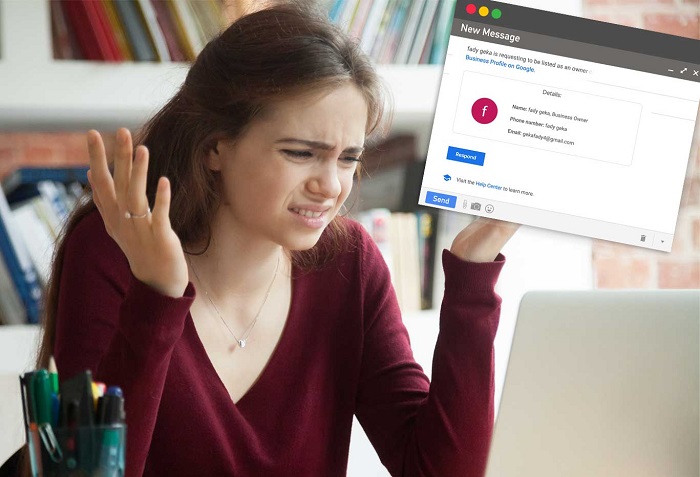
Submitting this request triggers an automated notification from Google directly to the current primary owner’s registered inbox. This action starts an unalterable three-day administrative window. Google grants the current account holder three calendar days to respond by approving your request, rejecting it, or ignoring it altogether.
Managing the Three Post-Request Scenarios
What happens at the expiration of that three-day window dictates your next tactical move. The platform will guide you into one of three distinct tracks.
Scenario A: The Current Owner Approves the Transfer
This is the cleanest outcome. The former employee receives Google’s prompt, clicks approve, and management transfers to your account. Once inside your dashboard, immediately confirm your account has been elevated to Primary Owner, and remove the ex-employee’s credentials from the profile’s user management settings entirely.
Scenario B: The Three-Day Window Expires Without a Response
If the former employee no longer monitors that inbox or chooses to ignore the message, Google treats their silence as an administrative abandonment. After seventy-two hours, check your inbox for an automated follow-up email from Google Business Profile Support containing a direct link to claim the listing.
Clicking that link allows you to bypass the unresponsive owner and proceed straight to re-verification. Depending on the trust score of your account and the category of your business, Google may offer immediate verification via business phone call, an automated text PIN, a corporate email domain check, or live video verification showing your physical facility, commercial signage, and locked entry doors.
Scenario C: The Former Employee Explicitly Denies Your Request
If an aggrieved ex-employee actively clicks the “Deny” button in their email, Google notifies you that your ownership request was rejected. While frustrating, this is not a permanent dead end.
The denial notification email includes an option to file an official ownership dispute appeal. Clicking this appeal link routes your case out of automated handling and into Google’s merchant support queue.
Preparing Evidence for a Formal Dispute Appeal
When an ownership conflict escalates to manual review, Google support agents require indisputable legal proof establishing that you are the legitimate owner or operating executive of the physical enterprise. The person holding the account credentials does not legally own the commercial identity of the business.
Assemble a comprehensive verification dossier containing high-resolution digital copies of:
-
Official Utility Invoices: Electric, gas, water, or commercial internet bills matching the exact registered business name and physical street address listed on the profile.
-
State or Municipal Filings: A current business license, corporate charter, or Secretary of State registration document validating your active commercial standing.
-
Commercial Lease or Deed Documentation: Legal documentation proving physical occupancy of the specific office, suite, or storefront location.
-
Physical Storefront Evidence: Unedited photographs or continuous video walkthroughs displaying permanent exterior building signage, interior operational spaces, branded company vehicles, and your point-of-sale systems.
Submit these documents through the appeal interface alongside a concise, unemotional statement explaining that the individual managing the account is a former employee whose administrative privileges have been revoked by the company. Support agents typically review these submissions within two to five business days. Once your documentation confirms operational custody of the address, Google overrides the rogue account and assigns primary ownership to your designated inbox.
Establishing Preventative Account Architecture
Recovering your profile is an exhausting administrative detour. Once control is safely restored, implement structural safeguards to ensure your company never experiences an administrative lockout again.
Never assign primary ownership of a core business asset to an employee’s personal account or an individual work email address tied to a single person. Instead, create a dedicated, role-based corporate account on your own domain (such as
[email protected]). Grant that central administrative identity the Primary Owner role on your Google Business Profile.When internal staff or third-party digital marketing agencies require day-to-day access to publish posts, manage photos, or address customer reviews, grant them individual Manager privileges through their respective business emails. Managers can execute all standard customer-facing tasks, but they lack the structural authority to delete the listing, lock out other users, or transfer ownership away from the parent company.
Finally, build profile administration directly into your human resources offboarding checklist. Whenever an employee or marketing contractor with administrative access departs, revoking their user permissions must be handled with the exact same urgency as collecting physical office keys and terminating building security badges. Treating your digital storefront as critical physical property keeps your local search presence protected, operational, and firmly under company control.
Comments are closed.